
Download Autosave Essentials – Automatic Backup Tool for Windows, Mac & More
Overview: Why Autosave Essentials Is the Simple Backup Solution You’ve Been Waiting For
In today’s fast‑paced digital world, losing a critical document, cherished photo, or a vital spreadsheet can feel catastrophic. Whether you’re a student juggling assignments, a professional handling client contracts, or a casual user preserving family memories, a reliable backup system is no longer a luxury—it’s a necessity. Autosave Essentials steps into this space as a lightweight, user‑friendly backup application designed to automatically protect your files without demanding technical expertise.
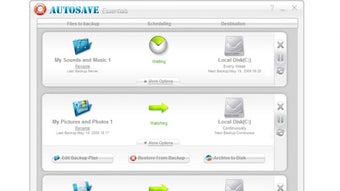
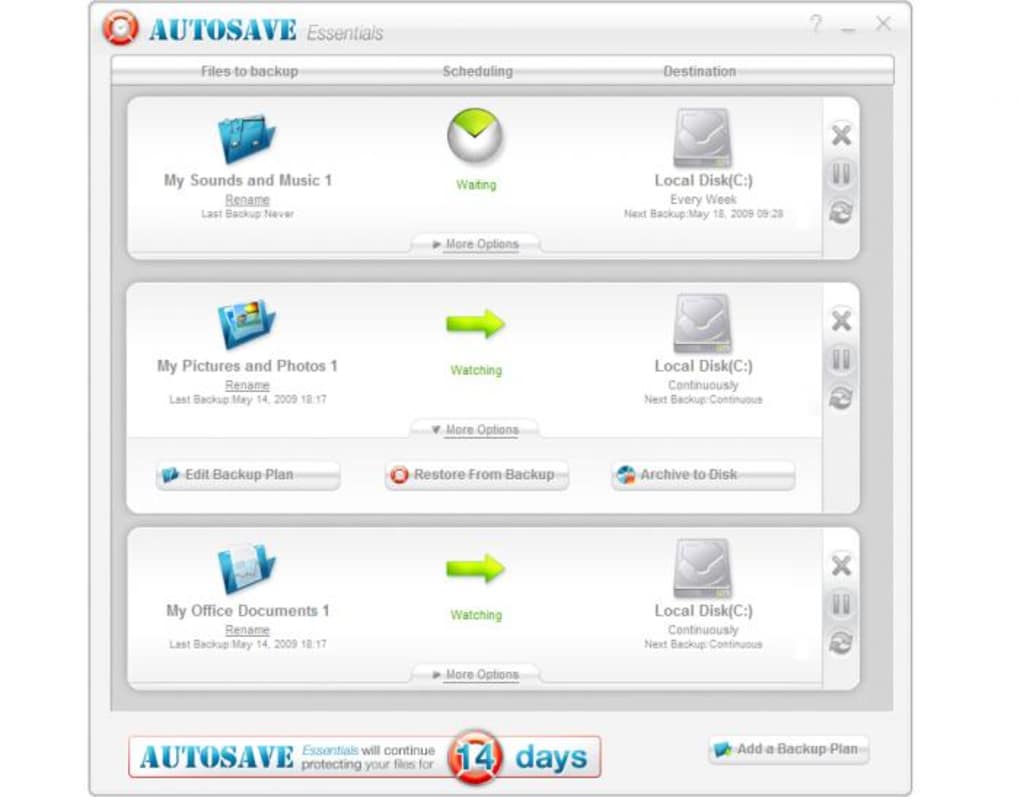
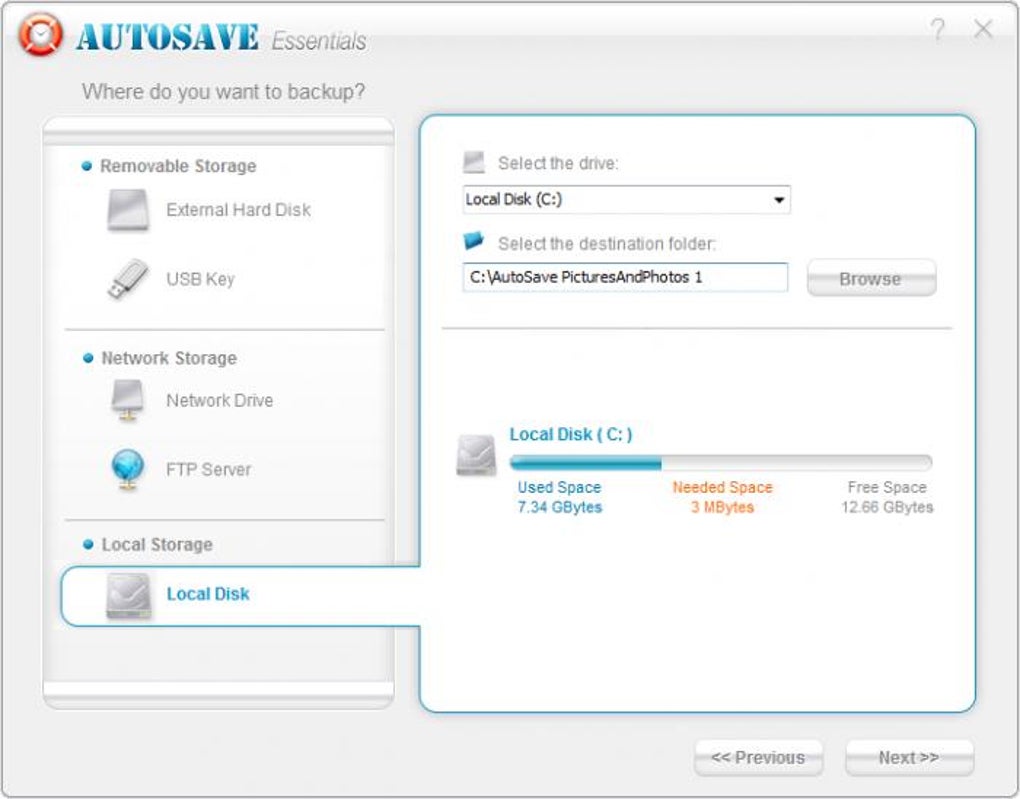
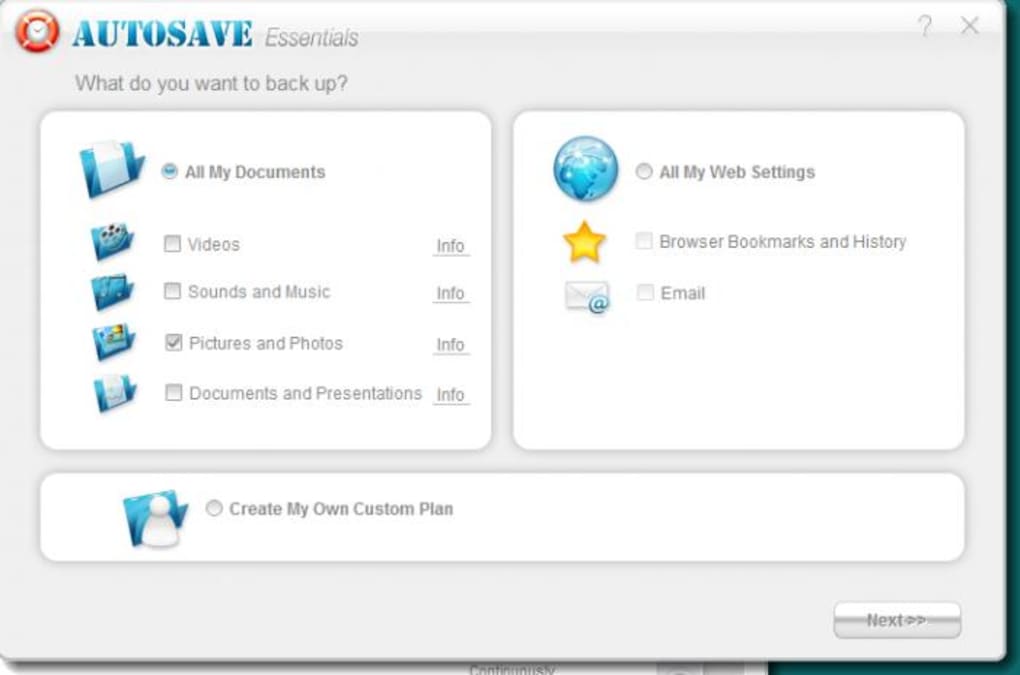
The core philosophy behind Autosave Essentials is simplicity. After a quick download and installation, the software springs to life, instantly monitoring the storage devices you designate. It offers three ready‑made backup profiles—Music, Photos, and Office Documents—so even the most novice user can hit “Start” within minutes. For those who need more granularity, the program lets you create custom profiles, select any destination (external hard drive, USB stick, network share, or FTP server), and schedule backups to run continuously or at specific intervals.
Security is baked into every layer of the tool. All data transfers are encrypted, ensuring that your files are not only saved but also protected from interception. The software runs quietly in the background, consuming minimal system resources, which means you can continue working, gaming, or streaming without noticeable slow‑downs. Moreover, Autosave Essentials supports automatic updates, so you always benefit from the latest security patches and feature enhancements without manual effort.
While the interface is intentionally clean and attractive—ideal for users who may feel intimidated by complex settings—more advanced users might find the feature set a bit shallow compared to enterprise‑grade solutions. Nonetheless, for the vast majority of home and small‑office environments, Autosave Essentials delivers a secure, hassle‑free way to keep critical files backed up. If you’re looking for a free, secure, and easy‑to‑use backup app that works across Windows and macOS, this tool checks all the boxes.
Key Features That Make Autosave Essentials Stand Out
- Automatic real‑time backup for selected folders and file types.
- Three pre‑configured backup profiles (Music, Photos, Office Documents) ready after installation.
- Custom profile creation with unlimited destinations (local drives, USB, network share, FTP).
- Flexible scheduling: continuous monitoring, hourly, daily, or weekly backups.
- End‑to‑end AES‑256 encryption for all backup transfers.
- Lightweight background service that uses less than 5 % CPU on idle systems.
- Simple, modern UI with drag‑and‑drop folder selection.
- Automatic update mechanism that keeps the software secure and feature‑rich.
- Cross‑platform support for Windows 7/8/10/11 and macOS 10.13 +.
- Comprehensive log viewer for tracking backup history and troubleshooting.
Each of these features has been crafted with the end‑user in mind. The automatic real‑time backup engine monitors file changes at the file‑system level, meaning that as soon as you save a document, a secure copy is instantly stored on the destination you chose. This “set‑and‑forget” approach eliminates the dreaded “I forgot to back up” scenario.
The pre‑configured profiles simplify the onboarding process. When you first launch Autosave Essentials, the Music profile automatically points to your default music library, the Photos profile to your Pictures folder, and the Office Documents profile to your Documents folder. You can accept these defaults or fine‑tune them, adding or removing subfolders with a few clicks.
Custom profiles give power users the flexibility to back up project folders, development codebases, or even entire partitions. Because the tool supports FTP servers, it can also serve as a lightweight cloud backup solution for users who already have personal FTP storage.
Security is paramount. All data is encrypted before it leaves your computer, ensuring that even if the destination server is compromised, the files remain unreadable without the decryption key, which is stored locally and protected by the operating system.
Finally, the low‑impact design means you can keep Autosave Essentials running 24/7 on laptops and desktops without draining battery life or affecting performance—a crucial factor for users who need continuous protection while traveling or working on the go.
Installation & Usage: Step‑by‑Step Guide to Getting Started
Getting Autosave Essentials up and running is intentionally straightforward. Follow these steps to ensure a smooth installation and immediate protection for your files.
- Download the installer. Visit the official website and click the Download Autosave Essentials button. Choose the version that matches your operating system—Windows or macOS. The file size is under 30 MB, making it quick to download even on slower connections.
- Run the installer. Double‑click the downloaded .exe (Windows) or .dmg (macOS) file. On Windows, you may be prompted by User Account Control; click “Yes” to allow the installer to make changes. On macOS, drag the Autosave Essentials icon into your Applications folder.
- Complete the installation wizard. The wizard walks you through license agreement, destination folder selection, and optional desktop shortcuts. Accept the defaults unless you have a specific preference.
- Restart your computer. A quick reboot ensures that the background service is properly registered with the operating system. After the restart, Autosave Essentials will launch automatically.
- Initial configuration. The first time the app opens, you’ll see a welcome screen with the three pre‑configured backup profiles. Review each profile’s source folder and destination path. If the default destination points to a location you don’t want to use (e.g., the system drive), click “Change” and select an external USB drive, network share, or FTP server.
- Customize or add new profiles. Click the “Add Profile” button to create a new backup set. Choose a name, select the folders you wish to protect, and specify the destination. You can also set the schedule—continuous, hourly, daily, or weekly—depending on how frequently the data changes.
- Enable automatic updates. In the Settings menu, toggle “Auto‑Update” to ensure you receive the latest security patches without manual intervention.
- Monitor activity. The dashboard displays real‑time status, recent backup jobs, and any errors. Use the Log Viewer to audit past backups or troubleshoot issues.
After completing these steps, Autosave Essentials begins protecting your files instantly. If you ever need to pause backups—perhaps when moving large files or during a system performance test—simply click the “Pause” button. When you’re ready, hit “Resume” and the software will catch up on any missed changes.
Because the application runs as a background service, you won’t need to keep an open window open. However, the system tray (Windows) or menu bar (macOS) icon provides quick access to the most common actions, such as opening the dashboard, adding a new profile, or temporarily disabling backups.
Compatibility, Pros & Cons: What Platforms Are Supported and Who Benefits Most
Supported Operating Systems
- Windows 7, 8, 8.1, 10, and 11 (both 32‑bit and 64‑bit)
- macOS 10.13 (High Sierra) and later (including Ventura and Sonoma)
Autosave Essentials does not currently offer native Android or iOS apps, as its primary focus is desktop file protection. However, the backup destinations can include mobile‑compatible cloud services via FTP or network share, enabling indirect access from smartphones.
Pros
- Intuitive, beginner‑friendly interface that requires minimal configuration.
- Automatic real‑time backup reduces risk of data loss.
- Strong AES‑256 encryption ensures backups are secure.
- Low system resource usage—ideal for older machines.
- Flexible destination options, including external drives, network shares, and FTP servers.
- Free version available with essential features; premium upgrade offers priority support and additional scheduling options.
Cons
- Limited advanced features such as versioning, differential backups, or cloud‑only storage.
- No native mobile app for iOS/Android.
- Occasional UI glitches reported on Windows Vista (e.g., wallpaper reset after installation).
- Custom scripting or API integration not supported, which may deter power users.
Overall, Autosave Essentials shines for home users, students, and small office environments that need a reliable “set‑and‑forget” backup solution. Professionals who require granular version control or enterprise‑grade reporting may look toward more sophisticated tools, but for everyday file protection, the balance of ease‑of‑use and security is compelling.
Frequently Asked Questions (FAQ)
Is Autosave Essentials free to use?
Yes, Autosave Essentials offers a fully functional free version that includes automatic backup, encryption, and support for multiple destinations. A premium upgrade is available for users who want priority support and additional scheduling flexibility.
Can I back up files to a cloud service like Dropbox or Google Drive?
Autosave Essentials does not integrate directly with proprietary cloud services, but you can use the FTP or network‑share options to point to a folder that syncs with services such as Dropbox, OneDrive, or Google Drive on your computer.
How secure are the backups?
All backup data is encrypted using AES‑256 encryption before it leaves your computer. This industry‑standard encryption ensures that even if the destination storage is compromised, the files remain unreadable without the decryption key stored securely on your system.
Will Autosave Essentials slow down my computer?
The application is designed to run in the background with minimal CPU and memory usage—typically less than 5 % of system resources when idle. During active backup operations, you may notice a slight increase in disk activity, but overall performance impact is negligible.
Can I restore individual files or entire backup sets?
Yes, the Restore function lets you browse backup logs and select specific files, folders, or entire backup profiles to recover. Restored files are placed in a user‑chosen location, preserving the original folder structure.
Conclusion: Secure Your Data Today with Autosave Essentials
Data loss can happen in a split second—whether due to accidental deletion, hardware failure, or ransomware. Autosave Essentials offers a pragmatic, secure, and free way to safeguard your most valuable files across Windows and macOS platforms. Its real‑time monitoring, encrypted transfers, and effortless setup make it an ideal choice for anyone who wants protection without the headache of complex configurations.
While power users may crave deeper features such as versioning or cloud‑only storage, the core functionality delivered by Autosave Essentials meets the needs of the majority of home and small‑office users. The intuitive interface ensures that even the least tech‑savvy individuals can set up reliable backups in minutes, while the low‑resource design guarantees that the software won’t slow down everyday tasks.
Ready to protect your files? Download Autosave Essentials now and enjoy peace of mind knowing your documents, photos, and music are automatically backed up to the storage device of your choice. Stay secure, stay updated, and never worry about losing a single file again.







